

What is Microsoft Azure? Microsoft Azure Comprehensive User Guide
What is Microsoft Azure?
Microsoft Azure is an integrated system of cloud computing services, provided by Microsoft.
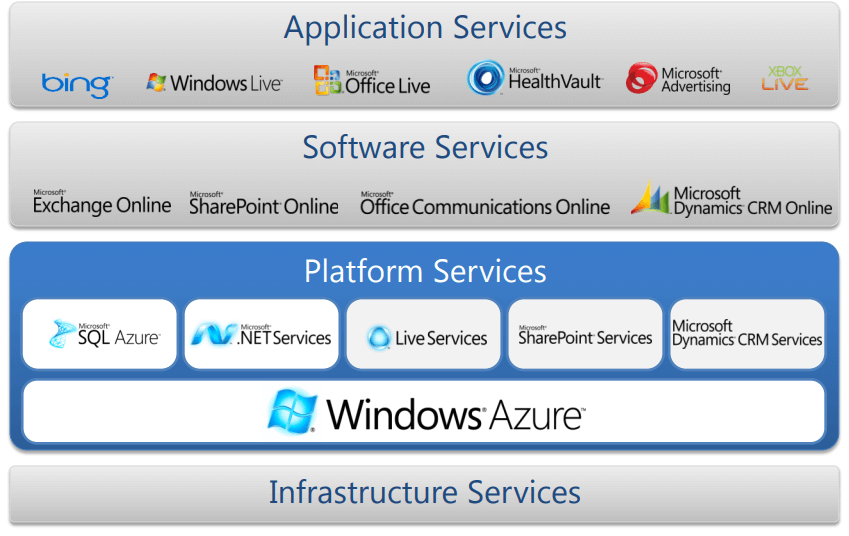
The Microsoft Azure system is made up of three basic architectures: IAAS, PAAS, and SAAS.
- IAAS stands for Infrastructure as a Service. It is understood as a Host, taking on the responsibility of operating and managing the system. PASS is an abbreviation of Platform as a Service.
- PASS helps Azure build and execute the work in the system.
- Finally, SAAS stands for Software as a Service. SASS takes on the role of consumption. It helps users to easily install Azure through the Internet.
What is Microsoft Azure used for?
Because Microsoft Azure includes many services offered, and its use cases are very diverse. Running virtual machines or containers in the cloud is one of the most common uses of Microsoft Azure. These computing resources may host infrastructure components, such as domain name system (DNS) servers; Windows Server services - such as Internet Information Services ( IIS ); or third-party applications. Microsoft also supports the use of third-party operating systems, such as Linux.
Azure is also commonly used as a platform for storing databases in the cloud. Microsoft offers serverless relational databases like Azure SQL and non-relational databases like NoSQL.
In addition, the platform is often used for backup and disaster recovery. Many organizations use Azure storage as storage to meet their long-term Data retention requirements.
Microsoft Azure Services
Azure offers more than 200 services and is divided into 18 categories. It covers areas like computing, networking, storage, IoT, mobility, mobility, analytics, containers, artificial intelligence and machine learning, integrations, management tools, developer tools, security, and more. security, databases, DevOps, media identity, and web services.

Here are some key Azure services:
Calculation service
1. Virtual Machine
This service allows you to create a virtual machine in Windows, Linux or any other configuration in just a few seconds.
2. Cloud computing service
This service allows you to create applications that are scalable in the cloud. Once the application is deployed, everything including provisioning, load balancing, and health monitoring is taken care of by Azure.
3. Service Fabric
With Service Fabric, the process of developing a microservice is greatly simplified. A microservice is an application that contains various small, packaged applications.
4. Functions
You can create apps in any programming language using functions. The best part about this service is that you don't need to worry about the hardware requirements while developing the application, because Azure will take care of that. All you need to do is provide the code.
Network connections
1. Azure CDN
CDN (Content Delivery Network) is used to deliver content to users. It uses high bandwidth and the content can be transmitted to any person across the globe. The CDN service uses a network of servers strategically located around the globe so that users can access the data as soon as possible.
2. Express Route
This service allows you to connect your on-premises network to the Microsoft cloud, or any other service you want, through a private connection.
3. Virtual network
Virtual networking allows you to let any Azure service communicate with each other in the most private and secure way.
4. Azure DNS
This service allows you to host your DNS domains or system domains on Azure.
Storage
1. Disk Storage
This service allows you to choose from HDD (Hard Disk Drive) or SSD (Solid State Drive) as your storage option along with your virtual machine.
2. Blob Storage
This service is optimized for storing large amounts of unstructured data, including text and even binary data.
3. File Storage
This is a managed file storage service, which can be accessed via the SMB (Server Message Block) protocol.
4. Queue Storage
This is a service that stores bulk messages and it allows access from anywhere in the world.
Basic Microsoft Azure User Guide
Step 1: Sign up
Go to https://azure.microsoft.com/ and proceed with the registration. After registering, you will receive username + password information and log in via portal: portal.azure.com of Microsoft to use services such as virtual machines, ...
When registering you need to pay attention to how to charge:
Pay as you go: This method allows to activate Microsoft Azure and use it without any limit on the amount. Bill will be returned every month for payment.
Cost tiering: This method allows active Microsoft Azure for a flat fee. Expired gas will be notified to resume service. Pre-payment to use.
Step 2: Use License
After registration is complete, the License is received as Username and Password. Please proceed to login azure.com to use.
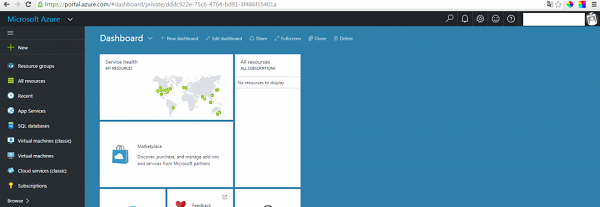
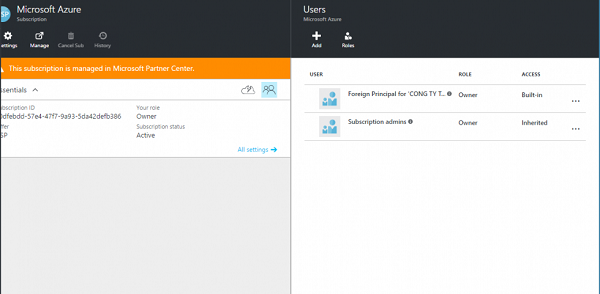
Select Subscriptions → Double click on Microsoft Azure
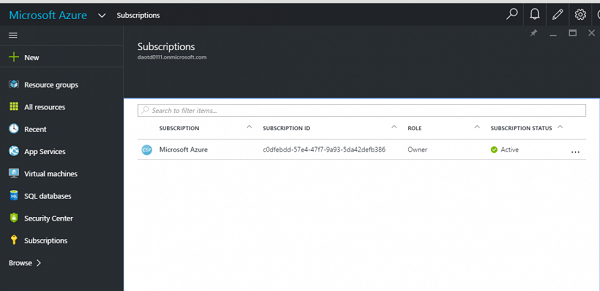
Select the icon in the yellow box.
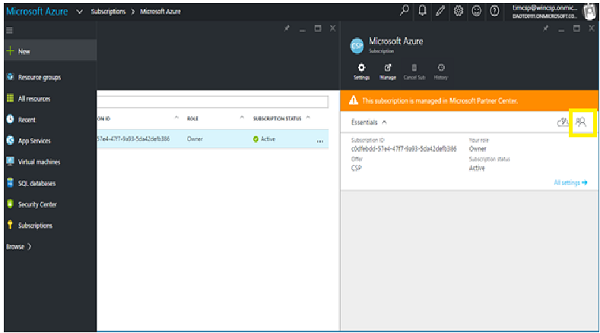
Select ADD.
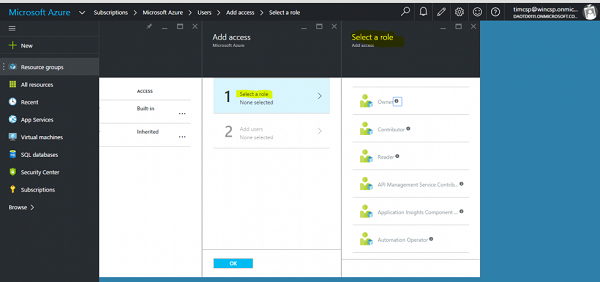
Select Role (permission for user).
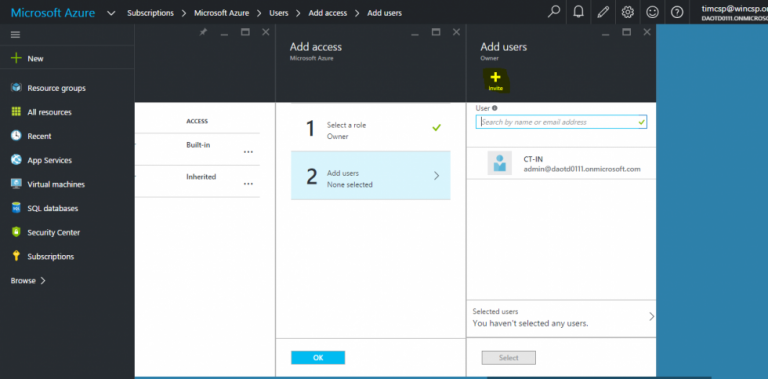
Select Invite in the Add User section (note: the added user must use a Microsoft account). Continue to manipulate the yellow cars.
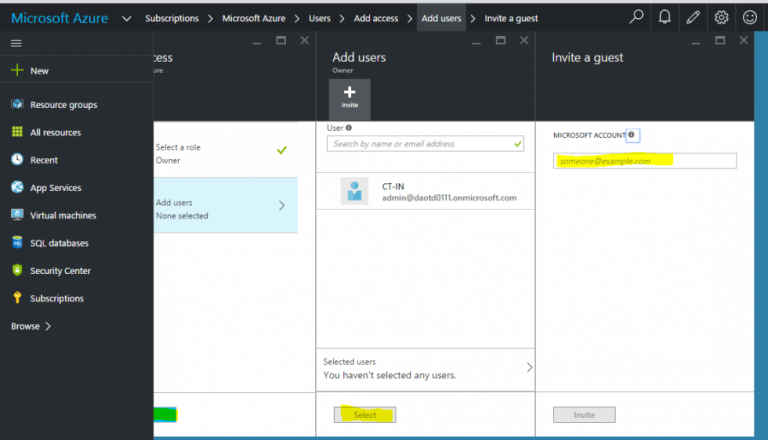
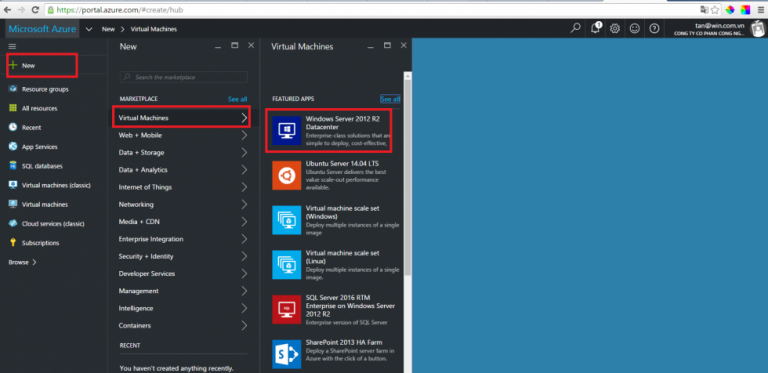
Click “New” with the + symbol. Next is to choose the service to use. For example: Virtual Machine → Select the available Template Os to create a virtual machine → Summit as shown below.
Step 3: Estimate the charge
Visit https://azure.microsoft.com/en-us/pricing/calculator/ to use Microsoft's cost calculator. Then you select the service to be charged by clicking “Add Item” → After the table appears in the red box below → continue to select the service to use.
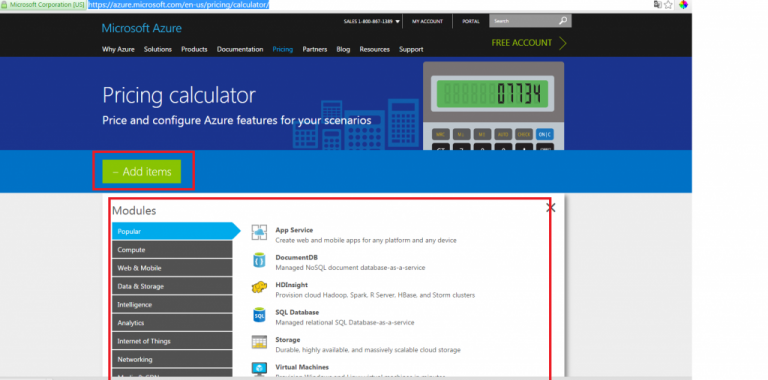
After completing the service selection, continue to click “Add Item” to minimize the service table and display the billing tool as below.
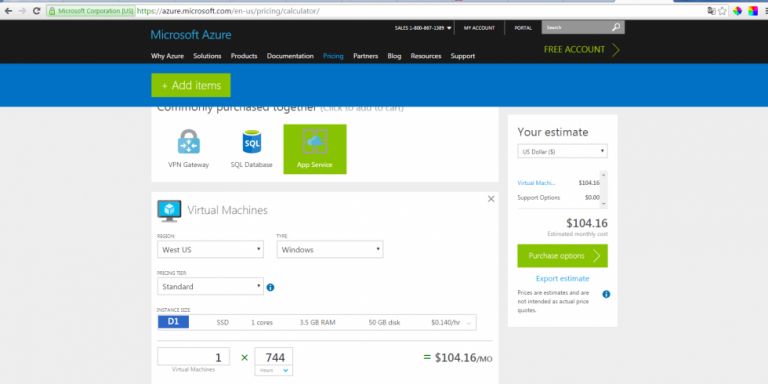
Proceed to select the location, type, and configuration package to use. The cost will be automatically estimated on tools. To add services to charge, click “Add Item” as above.
Summary
In short, Azure is a provider of powerful cloud computing services and is used by quite a few people. This is a foreign supplier, so it requires you to be proficient. If you are a beginner and need detailed instructions, please connect with CMC TS.
When you choose CMC TS as your Windows Virtual Desktop (WVD) solution provider and implementation, your business will be supported by our team of senior experts:
- Build and design the WVD system according to Microsoft's standards
- Planning the user's usage needs corresponding to the WVD . profiles
- Set up WVD system on Azure environment
- Fast and effective deployment from just 5 days
- Plan future Azure costs as the solution expands
CMC TS is a Gold Partner, Direct Cloud Solution Provider (CSP), Licensing Solution Partner (LSP) and the first Local FastTrack Partner of Microsoft in Vietnam.
-cr-235x150.jpg)
